 HabitLoop
If-then plans: decide when and where before the moment comes
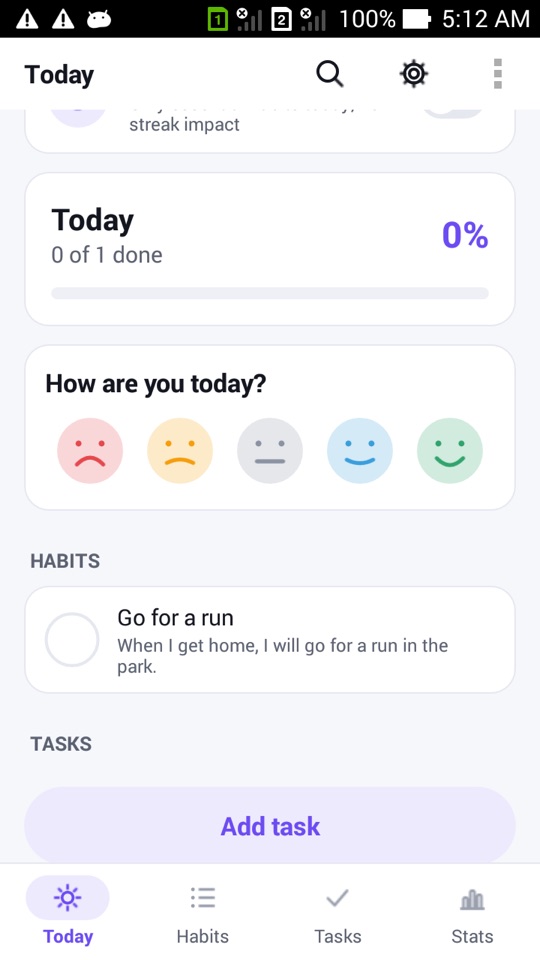
HabitLoop's If-then plans turn a habit into a sentence like "When I get home, I will go for a run", and show it on Today, in reminders and on the widget.
A habit called "Run" tells you what. It doesn't say when or where, and that gap is where a lot of good intentions quietly disappear. Psychologists call the fix an "implementation intention": a short if-then sentence that ties the habit to a moment you already live through every day. HabitLoop builds that idea into the habit editor as If-then plans.
What an If-then plan looks like
A plan has up to three parts, which HabitLoop joins into one sentence:
- When: the cue, for example "I get home" or "I finish my morning coffee".
- I will: the habit itself, taken from the habit name.
- Where (optional): for example "in the park" or "at the kitchen table".
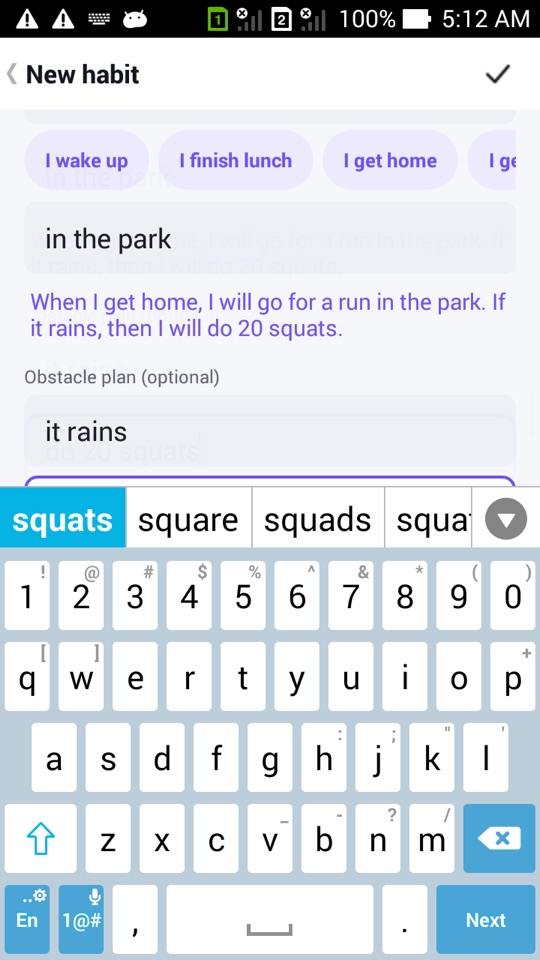
That gives you: When I get home, I will go for a run in the park.
Then there is an optional Obstacle plan, for the thing that usually gets in the way:
- If: the obstacle, for example "it rains".
- then I will: the fallback, for example "do 20 squats".
Together: When I get home, I will go for a run in the park. If it rains, then I will do 20 squats.
As you type, the editor shows the finished sentence live underneath, so you can read it back and adjust the wording.
One-tap cues
You don't have to invent a cue from scratch. The Plan it section offers chips you can tap:
- the reminder time, if the habit has a reminder, for example "it's 7:00"
- after the previous routine step, if the habit is part of a routine, for example "I finish Stretch"
- everyday moments: I wake up, I finish lunch, I get home, I get into bed
You can still type your own cue if none of them fits.
Where your plan appears
A plan only helps if you see it at the right moment, so HabitLoop puts the sentence in several places:
- On Today, as the subtitle under the habit name, in place of the schedule line.
- In the reminder notification, as the body text. Instead of a generic prompt, the reminder reads "When I get home, I will go for a run in the park."
- On the Today checklist widget, as the row subtitle. If you use the app lock, the widget hides the plan so it isn't shown on your Home screen.
- On the habit's detail screen, as its own card.
A habit without a plan looks and behaves exactly as before. Plans are optional, one habit at a time.
Plans that learn from what got in the way
If-then plans connect to another HabitLoop feature: What got in the way? After a missed or skipped day, Today can show a row of quick chips, such as Tired, Busy, Forgot, Sick or Travel, plus your own tags and a Not now button. It is optional and can be turned off in Settings.
Once you have tagged at least five obstacles, Insights shows your most common ones and offers a button like Plan for "Tired". Tapping it opens the habit editor with the obstacle plan already filled in, so all you add is the fallback, for example "If I'm tired, then I will do a 5-minute walk."
Works in every language
HabitLoop runs in 20 languages, and an if-then sentence doesn't use the same word order everywhere. Each language has its own sentence pattern, so the plan reads naturally in German, Japanese or Arabic, including right-to-left layout, rather than as English glued together with translated words.
How to add an If-then plan to a habit
- Open the habit (or tap + on the Habits tab to create a new one) and tap the pencil icon to edit it.
- Scroll to Plan it.
- Tap a cue chip, such as I get home, or type your own cue.
- Optionally type where you'll do it, for example "in the park".
- Optionally fill in the Obstacle plan (optional) fields: the obstacle after "If" and your fallback after "then I will".
- Read the sentence shown under the fields and adjust until it sounds like something you'd actually say.
- Save with the check mark. The plan now shows on Today, in reminders and on the widget.
HabitLoop is a habit tracker, not a medical or mental-health tool. Planning techniques can help some people more than others. If you're working on a health goal or a difficult habit, talk to a doctor or another qualified professional.
FAQ
Do I have to write a plan for every habit?
No. Plans are optional and set per habit. Habits without a plan keep showing their schedule as before.
Will my plan be visible on my lock screen or Home screen?
It appears in reminder notifications and on the Today widget. If you turn on the app lock, the widget hides plan text. How notifications appear on your lock screen is controlled by Android's notification settings.
Can I change a plan later?
Yes. Edit the habit and change or clear the fields in Plan it. The new sentence is used from then on.
Does the plan show on my Wear OS watch?
Not yet. The watch app keeps its own standalone habits, so plans written on the phone are not shown there.